Key Takeaways
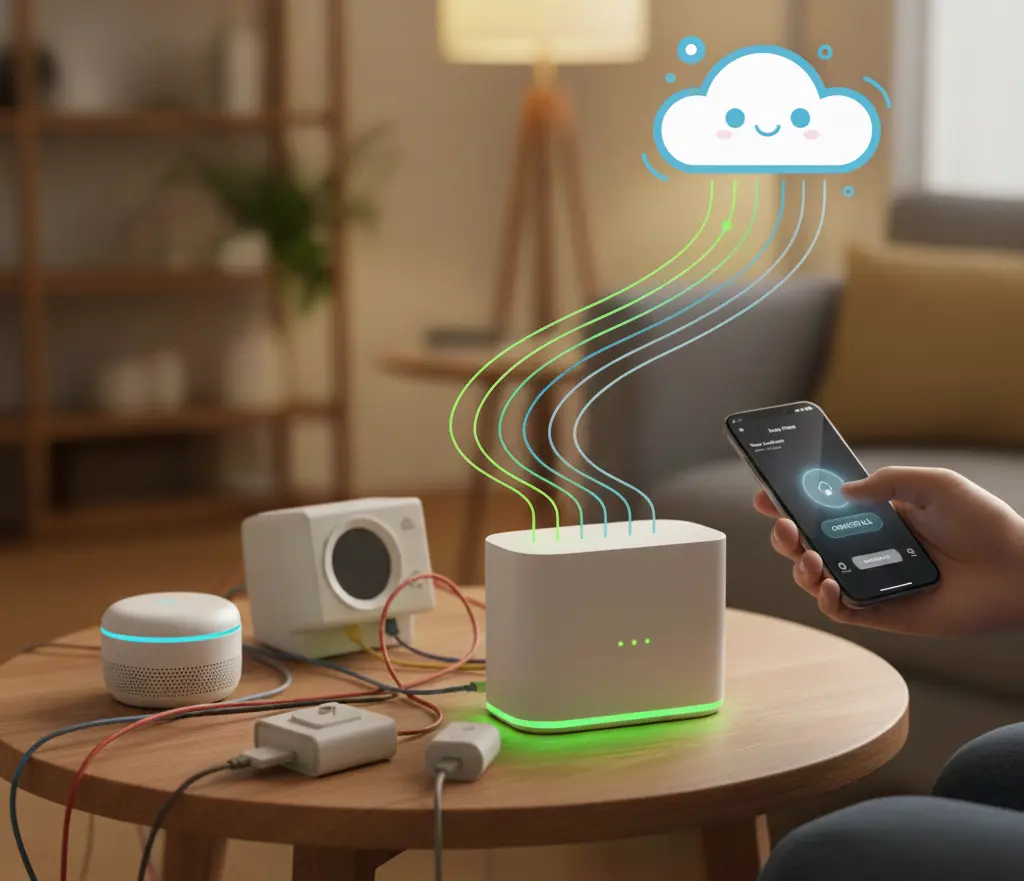
Quick Summary: Everything you need to know about Matter bridges in 60 seconds.
- Matter bridges connect non-Matter devices to the Matter ecosystem (No need to replace your existing smart home gadgets.)
- Home Assistant is the most powerful bridge option (Exposes hundreds of device types to Matter with extensive customization.)
- SmartThings bridges many legacy devices automatically (Easy setup for beginners with broad device compatibility)
- Philips Hue Bridge connects your entire Hue ecosystem (All your Hue lights become Matter-accessible with a simple update.)
- Bridges work by translating protocols (They convert Zigbee, Z-Wave, Wi-Fi, and proprietary signals into Matter language.)
- You don’t need multiple bridges (One powerful bridge like Home Assistant can handle your entire device collection.)
- Some limitations exist (Not every feature of every device translates perfectly through bridges.)
- Bridges are the smart alternative to replacement (Save money while still enjoying Matter’s universal compatibility benefits.)
⏱️ Reading Time: 10 minutes
💡 Difficulty Level: Beginner to Intermediate
The Bottom Line Upfront
Short on time? Here’s what you need to know about Matter bridges:
- A Matter bridge connects non-Matter devices to Matter — Think of it as a translator
- Home Assistant offers the most comprehensive bridging — Best for power users
- SmartThings is easiest for beginners — Simple setup, automatic bridging
- Philips Hue Bridge handles all Hue products — One firmware update enables Matter
- You save hundreds of dollars — No need to replace working devices
- Setup is easier than you think — Most bridges work with minimal configuration
Ready for the complete guide? Let’s dive in…
Introduction
Here’s a frustrating scenario:
You’ve invested thousands into your smart home over the years. Smart lights, sensors, locks, thermostats.
Then Matter arrives, promising universal compatibility and a unified smart home experience.
But there’s a problem.
Half your devices don’t support Matter! And replacing everything would cost a small fortune.
Sound familiar?
Here’s the good news: You don’t have to replace anything.
Use a Matter bridge. A brilliant solution that connects your existing non-Matter devices to the Matter ecosystem without replacing a single gadget.
In this guide, we’ll show you exactly how Matter bridges work, which options are best for your situation, and how to set them up step by step. Also if you need a beginner level guide which answers all your questions regarding home automation for 2026, CLICK HERE.
Your existing smart home isn’t obsolete. Let’s prove it.
Table of Contents
What Is a Matter Bridge in smart homes?
A Matter bridge is a device or software that translates communication between non-Matter devices and the Matter ecosystem.
Think of it like a language interpreter.
Your old Zigbee light speaks “Zigbee.” Your Z-Wave lock speaks “Z-Wave.” Your Wi-Fi sensor speaks its own proprietary language.
A Matter bridge listens to all these different languages, translates them, and presents them to Matter controllers in the universal Matter language.
The result? Your non-Matter devices suddenly appear as Matter devices to Apple Home, Google Home, Alexa, and any other Matter controller.
How It Actually Works
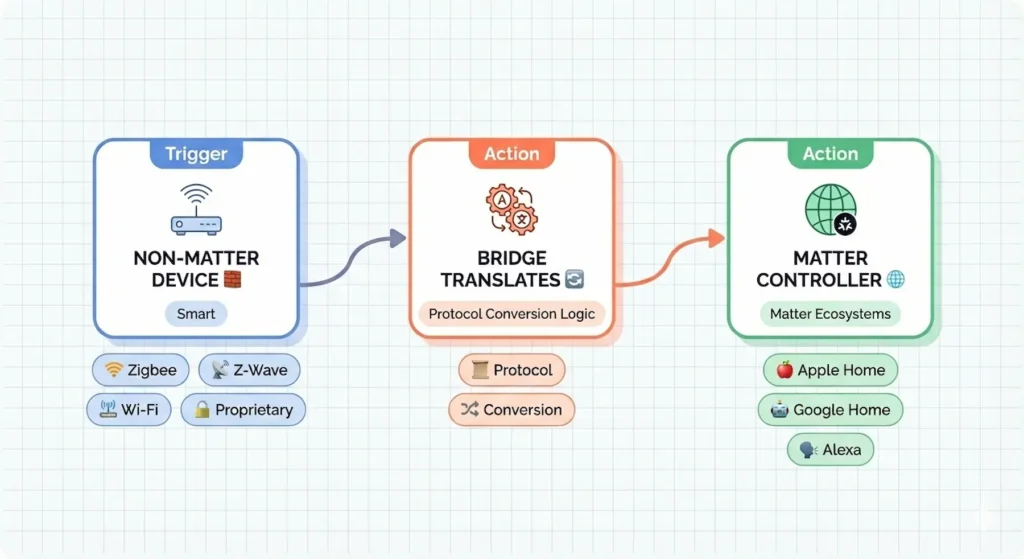
Step-by-step process:
- Your non-Matter device communicates using its native protocol
- The bridge receives this communication
- The bridge translates it into Matter protocol
- Matter controllers see and control the device as if it were native Matter
- Commands flow back through the bridge to the original device
What Bridges Can Connect
| Protocol/Device Type | Bridgeable to Matter? | Best Bridge Option |
|---|---|---|
| Zigbee devices | ✅ Yes | Home Assistant, SmartThings |
| Z-Wave devices | ✅ Yes | Home Assistant, SmartThings |
| Wi-Fi smart devices | ✅ Yes | Home Assistant |
| Philips Hue products | ✅ Yes | Philips Hue Bridge |
| IKEA Tradfri | ✅ Yes | IKEA DIRIGERA Hub |
| Tuya/Smart Life | ✅ Yes | Home Assistant (with integration) |
| Proprietary protocols | ⚠️ Varies | Depends on Home Assistant support |
The 3 Best Matter Bridge Options
- Home Assistant – The Power User’s Choice
- SmartThings – The Beginner-Friendly Choice
- Philips Hue Bridge – The Hue Ecosystem Choice
Home Assistant vs SmartThings vs Philips Hue Bridge
Head-to-Head Comparison
| Feature | Home Assistant | SmartThings | Philips Hue Bridge |
|---|---|---|---|
| Ease of Setup | ⭐⭐⭐ Moderate | ⭐⭐⭐⭐⭐ Easy | ⭐⭐⭐⭐⭐ Very Easy |
| Device Compatibility | ⭐⭐⭐⭐⭐ Widest | ⭐⭐⭐⭐ Broad | ⭐⭐⭐ Hue Only |
| Customization | ⭐⭐⭐⭐⭐ Full | ⭐⭐⭐ Limited | ⭐⭐ Minimal |
| Local Processing | ⭐⭐⭐⭐⭐ Yes | ⭐⭐⭐ Hybrid | ⭐⭐⭐⭐⭐ Yes |
| Cloud Dependency | ⭐⭐⭐⭐⭐ None | ⭐⭐⭐ Some | ⭐⭐⭐⭐ Minimal |
| Cost | ⭐⭐⭐⭐ Low-Medium | ⭐⭐⭐⭐ Medium | ⭐⭐⭐⭐⭐ Free (if owned) |
| Best For | Power users | Beginners | Hue owners |
Which Bridge Should You Choose?
Choose Home Assistant if:
- You want maximum device compatibility
- You enjoy tinkering and customization
- You have mixed-brand devices
- Privacy and local control matter most
- You want one solution for everything
Choose SmartThings if:
- You want simple, quick setup
- You already own a SmartThings hub
- You prefer app-based configuration
- You have primarily Zigbee/Z-Wave devices
- You’re new to smart home bridging
Choose Philips Hue Bridge if:
- You primarily use Hue lighting
- You want the simplest possible solution
- You already own a Hue Bridge
- You don’t need to bridge other brands
- You value Hue’s proven reliability
Step-by-Step Setup Guides on How to use a Matter Bridge to Save Your Old Smart Home Devices
Home Assistant Matter Bridge Setup
Prerequisites
- Home Assistant installed and running
- Devices already added to Home Assistant
- Home Assistant updated to latest version
- Matter integration available (Home Assistant 2023.1+)
Detailed Steps
Step 1: Enable Matter Server
textSettings → Devices & Services → Add Integration → Matter
- Install the Matter Server add-on if prompted
- Wait for initialization to complete
Step 2: Configure Matter Integration
- Navigate to Matter integration settings
- Enable “Share devices” option
- Configure network settings if required
Step 3: Select Devices to Expose
textSettings → Devices & Services → Matter → Configure
- Click “Share device”
- Select device from list
- Choose device type (light, switch, sensor, etc.)
Step 4: Generate Pairing Code
- System generates QR code and numeric code
- Save or screenshot the pairing code
Step 5: Add to Matter Controller
For Apple Home:
- Open Home app → Add Accessory
- Scan QR code or enter numeric code
- Assign room and name
For Google Home:
- Open Google Home → Devices → Add → Matter device
- Scan QR code
- Complete setup
For Alexa:
- Open Alexa app → Devices → Add → Matter
- Scan QR code or enter code
- Assign to room
Troubleshooting Tips
| Issue | Solution |
|---|---|
| Device doesn’t appear | Restart Matter integration |
| Pairing fails | Check network (devices need same subnet) |
| Commands delayed | Verify local network connectivity |
| Features missing | Some device types have limited Matter support |
Complete SmartThings Matter Bridge Setup
Prerequisites
- SmartThings Hub connected and online
- Devices already paired with SmartThings
- SmartThings app updated to latest version
- Hub firmware updated
Detailed Steps
Step 1: Update Everything
- Open SmartThings app
- Check for hub firmware updates
- Update app if needed
Step 2: Access Matter Settings
textMenu → Settings → Connected Services → Matter
Step 3: Enable Device Sharing
- Toggle on “Share devices with Matter”
- Accept any permissions requested
Step 4: Select Devices
- Tap “Shared devices”
- Select devices to expose
- Tap “Done”
Step 5: Generate and Use Pairing Code
- App displays QR code for each device (or hub)
- Scan with your Matter controller
- Complete pairing in controller app
Complete Philips Hue Bridge Matter Setup
Prerequisites
- Philips Hue Bridge v2 (square version)
- Hue app installed and connected
- All Hue devices configured in app
- Bridge connected to same network as Matter controller
Detailed Steps
Step 1: Update Hue Bridge Firmware
textHue App → Settings → Software Update → Check for Updates
- Install any available updates
- Bridge may restart during update
Step 2: Navigate to Matter Settings
textSettings → Smart Home → Voice Assistants
Step 3: Select Your Controller
- Choose Apple Home, Google Home, or Amazon Alexa
- Tap “Set up” or “Add to [Platform]”
Step 4: Generate Pairing Code
- Hue app displays QR code
- Also shows numeric backup code
Step 5: Complete Pairing
- Open your Matter controller app
- Add new Matter accessory
- Scan Hue’s QR code
- All Hue devices appear automatically
Step 6: Organize Devices
- Devices inherit room assignments from Hue app
- Rename or reorganize in controller app as needed
Frequently Asked Questions (FAQ)
Q: Can I use multiple Matter bridges at the same time?
A: Yes! You can run Home Assistant, SmartThings, and Philips Hue Bridge simultaneously. Each bridge exposes its connected devices to Matter independently. Your Matter controller sees all devices regardless of which bridge they come through.
Q: Will bridged devices be slower than native Matter devices?
A: There may be slight delays (typically 50-200ms) due to protocol translation. For most use cases, this is imperceptible. Home Assistant with local processing offers the fastest bridging performance.
Q: Do I need internet for bridged devices to work?
A: It depends on the bridge. Home Assistant works completely locally—no internet required. SmartThings requires internet for some functions. Philips Hue Bridge works locally for basic control but needs internet for some features.
Q: Can I bridge devices that require cloud connections?
A: Yes, with limitations. Home Assistant can bridge cloud-dependent devices (like some Tuya products), but they still require internet. The bridge just makes them visible to Matter controllers.
Q: What happens if my bridge goes offline?
A: Bridged devices become unavailable to Matter controllers until the bridge returns. This is why keeping backup control methods (original apps) is recommended.
Q: Can I bridge the same device to multiple controllers?
A: Yes! That’s the beauty of Matter’s multi-admin feature. Once bridged, a device can be controlled by Apple Home, Google Home, and Alexa simultaneously.
Q: Does bridging affect my device’s original functionality?
A: No. Bridging adds Matter control alongside existing controls. Your original apps, automations, and routines continue working normally.
Q: Which bridge should I choose if I’m a complete beginner?
A: Start with SmartThings or Philips Hue Bridge (if you have Hue products). Both offer straightforward app-based setup with minimal technical knowledge required. Graduate to Home Assistant later if you want more power.
Final Thoughts
Matter bridges represent the smartest path to a unified smart home.
Instead of spending hundreds or thousands replacing perfectly functional devices, a bridge lets you:
- ✅ Keep what works – Your existing investments remain valuable
- ✅ Gain Matter benefits – Universal control across all platforms
- ✅ Transition gradually – Replace devices on your timeline, not marketing’s
- ✅ Save significant money – Bridge cost vs. replacement cost is no contest
The bottom line:
Whether you choose Home Assistant for maximum power, SmartThings for simplicity, or Philips Hue Bridge for your lighting ecosystem, bridging is the smart choice.
Your legacy devices aren’t obsolete. They just need a translator.
Give them one.
Citations & Sources
- Connectivity Standards Alliance (CSA)
- Matter Protocol Specification
- Link: csa-iot.org/all-solutions/matter
- Accessed: January 2025
- Home Assistant Matter Integration Documentation
- Home Assistant Official Docs
- Link: home-assistant.io/integrations/matter
- Updated: January 2025
- SmartThings Matter Support Documentation
- Samsung SmartThings
- Link: support.smartthings.com
- Accessed: January 2025
- Philips Hue Matter Integration Guide
- Signify (Philips Hue)
- Link: hue.com/matter
- Updated: 2024